

SETTING UP A NEW WINDOWS SERVICE: GAUSS 17 AND ABOVE
Due to changes in RLM v12, the web administrative portal is no longer available. Please do the following for GAUSS versions 17+:
RLM Management Utility
GAUSS/GAUSS Engine v17 and above includes an RLM Management utility that calls rlmservice.exe. This utility can be used to create, delete and start a Windows Service and set certain User-defined parameters.
To access the RLM Management Utility:
Open the Windows Explorer File Manager.
Browse to the folder where GAUSS/GAUSS Engine is installed (e.g., c:\mteng18 or c:\gauss23)
Right click on the rlmservice.exe file and select Run as Administrator. The following RLM Management Window will display:
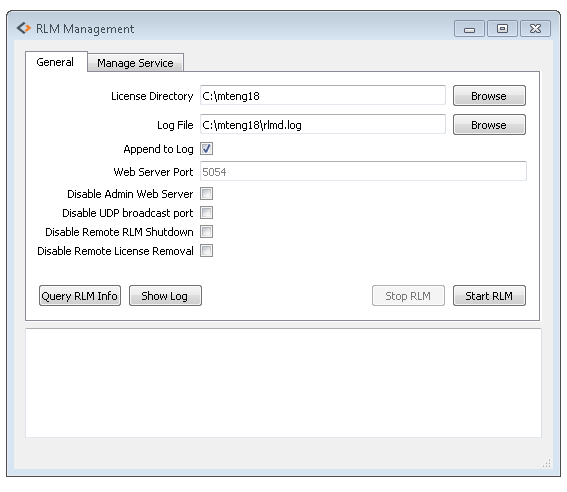
General Tab:
On the above General Tab of the RLM Management Window, you need to specify the following:
License Directory: Location of the GAUSS License file. Typically this is the GAUSS/GAUSS Engine HOME folder such as c:\gauss23 or c:\mteng18
Log File: Name of the RLM log file and location c:\gauss23\rlmd.log or c:\mteng18\rlmd.log
Append to Log: Typically check this box
Webserver Port: The web server port specifies the default port (5054) that RLM uses unless the user wants to specify a different port.
Disable Admin Web Server Port: Instructs the RLM Server to not start the embedded webserver.
Disable UDP Broadcast Port: Tells the RLM to not bind the UDP port (5053) used for reply to broadcast messages from clients in RLM v10.0 and later.
Disable Remove RLM Shutdown
Disable Remote License Removal
On the General Tab there are 4 Buttons:
Query RLM Info: Displays the rlm activity of the last 24 hours
Show Log: Displays the contents of the rlmd.log file
Stop RLM: Press this option BEFORE you Start your Windows Service on the Manage Service Tab.
Start RLM: Press this option AFTER you Start your Windows Service on the Manage Service Tab.
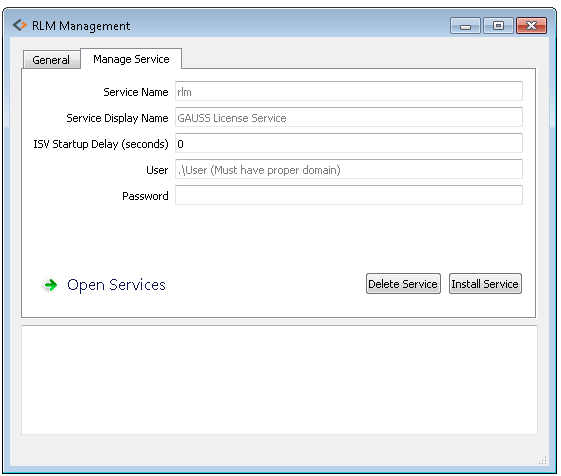
Manage Service Tab
On the Manage Service Tab of the RLM Management Window, you need to specify the following:
Service Name: This is a user-defined short name of the Service. It can be something like rlm or gsrlm.
Service Display Name (Friendly): This is a user-defined friendly name of the Service. It can be something like GAUSS 19 License Service or GAUSS License Service.
ISV Startup Delay (seconds): This delays reading the license file for X seconds.
User: Optional.
Password: Optional.
On the Manage Service Tab there are 3 Buttons:
Open Services: Opens the Windows services.msc file Window. It allows you to view all available Services on your machine.
Delete Service: Deletes previous rlm Services of earlier versions or other products that utilize RLM for their License Manager.
Install Service: Installs the new Windows Service for the latest version of GAUSS/GAUSS Engine.
Starting the Windows Service
Stop all rlm processes that are running. This can be done in the Windows Task Manager by selecting Show processes from all users.
Complete the fields on the General Tab of the RLM Management Window
Go to the Manage Service Tab
Click the Open the Services Button
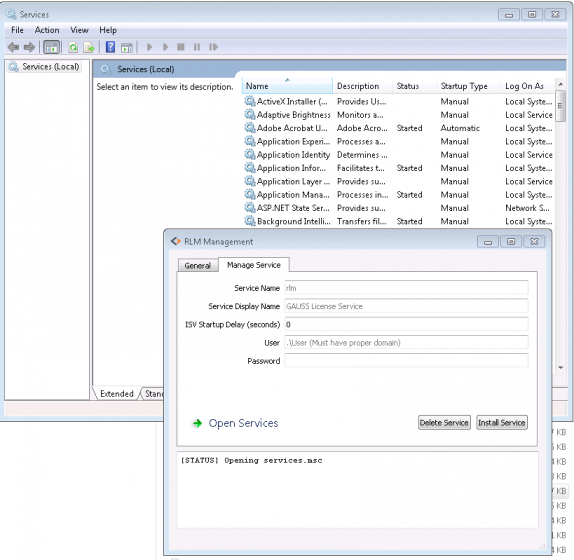
On the Services Window, identify any rlm Services currently set up. If you expand the Name heading on the Services Window, you can see the Short name of the Windows Service at the end of the Friendly name.
On the Manage Service Tab, complete the Service Name field with the Windows Service Short name (e.g., rlm).
Press the Delete Service Button.
Repeat for any other rlm Windows Services remaining.
When all previous rlm Windows Services have been deleted, complete the fields listed on the Manage Services Tab for the new permanent Windows Service.
Press the Install Service Button.
Click the Open the Services Button
Locate the GAUSS 23 License Service (or whatever you called it) on the Services Window.
Select the rlm Service that you wish to start using the Right-click button on your mouse and select Start on the menu options
Go to the General Tab.
Press the Start RLM Button.
Close the RLM Management and the Service Windows.
Start up GAUSS/GAUSS Engine from either your desktop icon or command line.
COMMAND LINE INSTRUCTIONS
Open a command-prompt as administrator (cmd.exe right-click Run As Administrator)
Type:

Run the rlm with specific arguments to create the service
Basic Setup: Includes the minimum required options.

The service_name “gsrlm” and display_name “GAUSS 23 License Service” can be anything you would like to call them.
You can add -nows if you do not want to enable the web server for example.
Service for a Specific User: If the service is going to running under a specific user you can supply the -user and -password arguments.

Starting the Windows Service: The Windows Service does not start automatically. To Start the Windows Service, please do the following:
Stop rlm.exe from the Command Prompt
Open services.msc. You can access Windows Services through the Windows Start Menu by searching on services.msc or Services. Right-click on the Services menu icon and select Run as Administrator.
Locate the GAUSS 23 License Service (or whatever you called it) on the Services Window and right-click and select Start
Try to start GAUSS/GAUSS Engine
Delete Service: To delete the service just run:

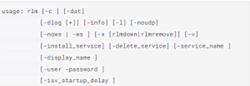
The following options are below:
SETTING UP A NEW WINDOWS SERVICE: GAUSS V11-16
The RLM software that comes with GAUSS provides an administrative portal which provides convenient controls for most of the tasks related to the license manager. To set up a new RLM service, please do the following:
Start the Reprise License Manager Administration Portal
Open a browser (Internet Explorer, Firefox, etc.) and Enter:
http://100.10.10.100:5054
Replace 100.10.10.100 with the actual IP address of your server
If you are on the machine that is running rlm.exe, you can replace the ip address with the term localhost, such as: http://localhost:5054
The web server interface is only available after RLM has been started as indicated above under Start the rlm.
The RLM web server will look something like this:
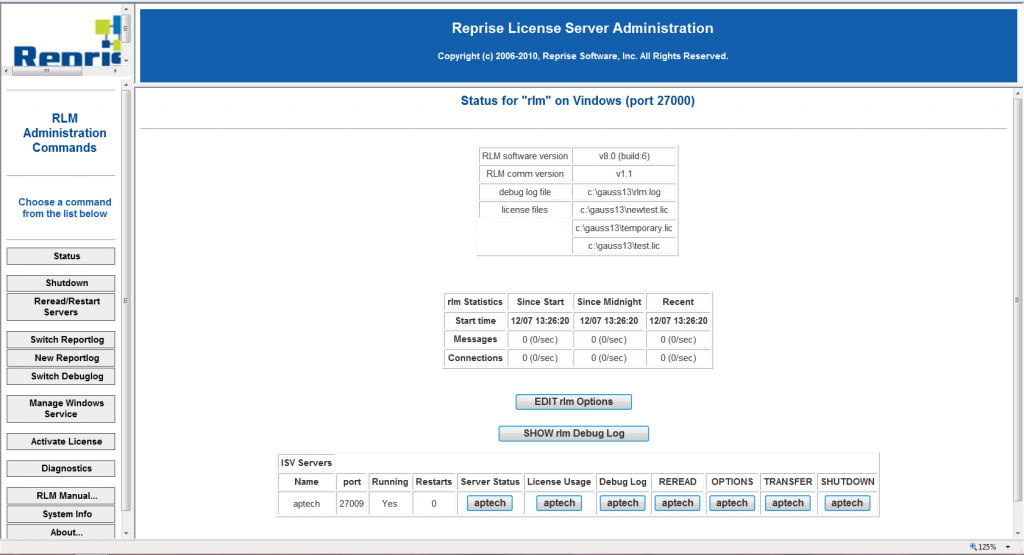
Set up the License Manager Windows Service
On the left is a button that says Manage Windows Service. Click that button; you should now see something like this:
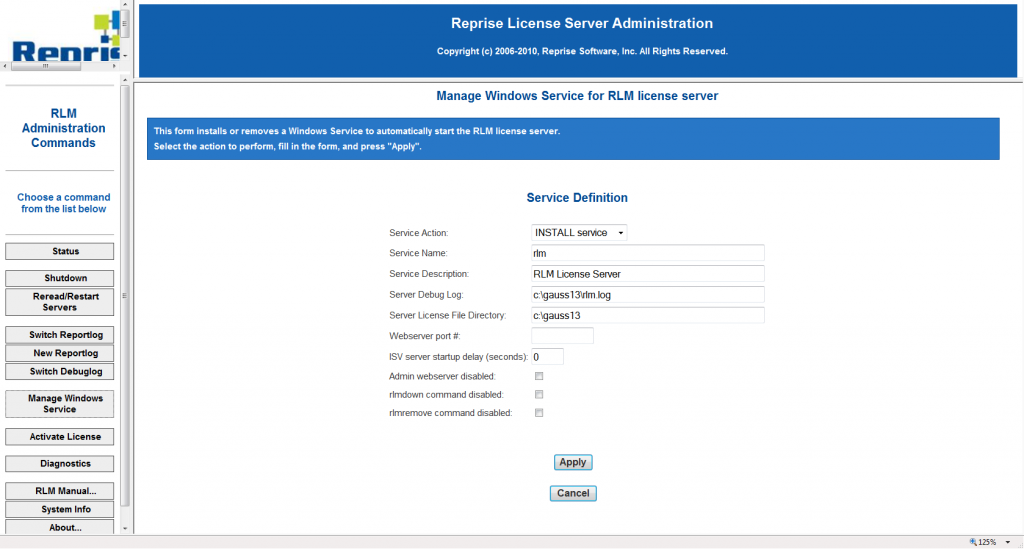
Select INSTALL Service and enter a new, different name than the existing service such as rlm_gauss16. Make sure the path points to the folder where you have installed GAUSS 16 and the RLM executable.
Click Apply to install the new RLM service as a Windows service. This will make it a service that can be started automatically, but it does not start the service yet; you should see a message like this:
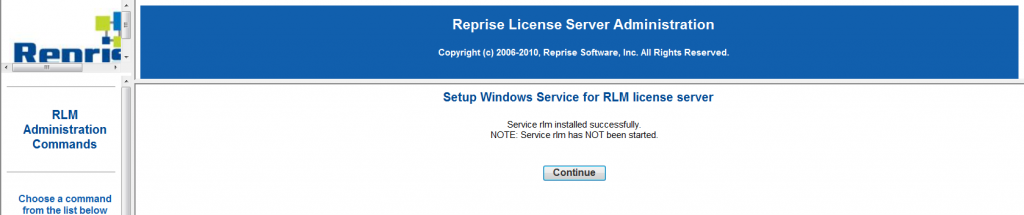
Click Continue, then you can close the browser window.
Start the Windows Service
Bring up the Windows Control Panel and select Administrative Tools -> Services.
Look for the new service you just installed (the list can be alphabetized by name by clicking on the Name heading if needed) and select it. It is called rlm.
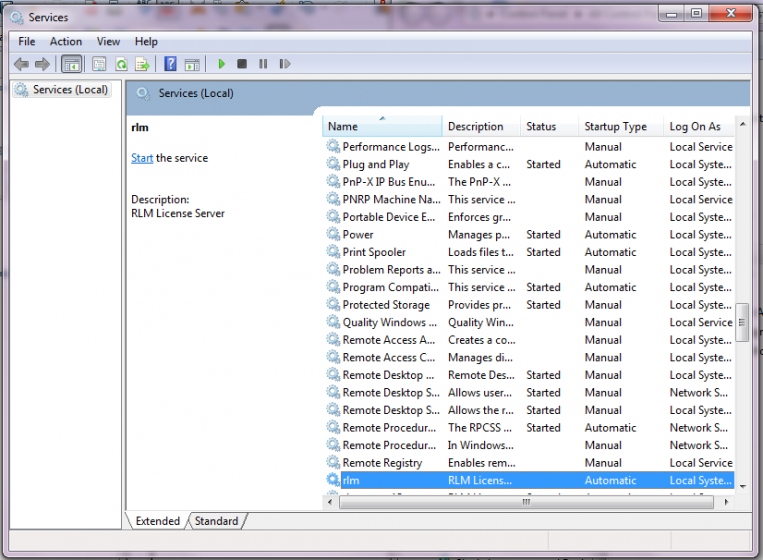
You should now see an option on the left to Start the service.
Look in the column Status; it should now say Started.
Under Startup Type it should say Automatic.
If it does not, right mouse click the service and select Properties.
You can change the startup type to Automatic on the General tab.
Bring up the web server interface and REMOVE the old service from the same screen where you installed the new service, editing the service name and paths to reflect the old service.
If you wish to keep the old service for some reason, you will need to go into Administrative Tools -> Services and set only one of the RLM services to start automatically; the other will need to be set to manual to avoid conflicts with the two services.
Start GAUSS from the desktop icon
If you receive this message: Service install failed. Error: Access to Service Control Manager denied, it means that your Reprise license manager process (rlm.exe) does not have adequate permissions to create a Windows Service on your system.To resolve this issue, please do the following:
Stop the Reprise license manager (rlm.exe) in your Task Manager.
Go to your Start menu or Accessories folder and locate the Command Prompt icon.
Right click the Command Prompt icon with your mouse and select Run as Administrator.
Restart the RLM by typing: rlm
Start GAUSS from the desktop icon.
TO STOP AN EXTRA/PREVIOUS WINDOWS SERVICE
On the Reprise License Server Admin Portal:
Click on Manage Windows Service on the left menu bar
Under Service Definition, you will see a drop-down menu for Server Action
Your options will be either INSTALL service or REMOVE service
Select REMOVE service